
Eduroam is a way for educational faculty, staff, and students to connect to the Wi-Fi in participating educational organizations in an institution other than their own. Find .
Configure eduroam Wireless
- Click the Wi-Fi icon on the bottom right corner in the system bar.
- Find and select eduroam in the listed networks.
- Click Connect.
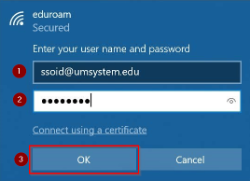
- You will get a pop up asking for your username and password.
- Enter your username@umsystem.edu or other federated username from participating institutions and your password.
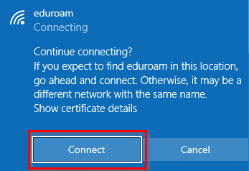
- It will ask you to trust the eduroam certificate to connect.
- Click Connect.
- You are now connected to the eduroam network.
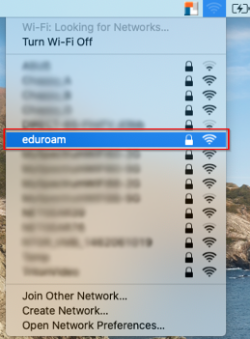
- From the desktop, click on the Wi-Fi icon on the top-right menu bar.
- Find and select eduroam in the listed networks.
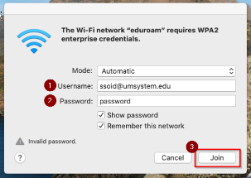
- You will get a pop up asking for your username and password.
- Enter your username@umsystem.edu or other federated username from participating institutions and your password.
- Click Join.
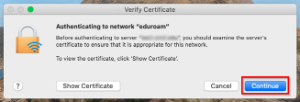
- It will ask you to trust the eduroam InCommon Server CA certificate to connect.
- Click Continue.
- You are now connected to the eduroam network.
- Select the Wi-Fi icon on the settings of your phone or at the top menu bar.
- Find and select eduroam in the listed networks.
- Under CA certificate, select Do not validate. Ignor this step if you do not have it in your Android OS version.
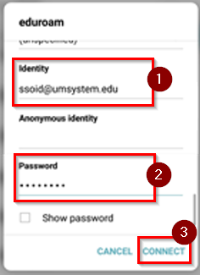
- In the Identity field, enter your username@umsystem.edu or other federated username from participating institutions.
- Leave the Anonymous field blank.
- In the Password field enter your university password.
- Click Connect.
- You are now connected to the eduroam network.
- Find and go to the Settings application.
- Select Wi-Fi in the listed settings options on the screen.
- Find and select eduroam in the list of Wi-Fi networks.
- The next screen will ask you to log in, enter your username@umsystem.edu or other federated username from participating institutions and your university password.
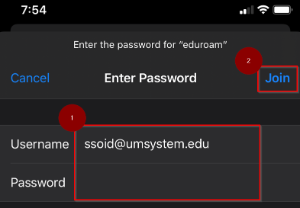
- Select Join at the top right of the screen.
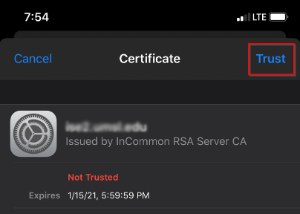
- It will ask you to trust the network, select Trust at the top right of the screen.
- You are now connected to the eduroam network.